The Key Insights is a summary panel section that shows what happened after you sent an email campaign. It helps you understand how many people received your email, how they reacted, and what results you got.
How Key Insights Works
Contacts → Sent → Delivered → Opened → Clicked → Converted
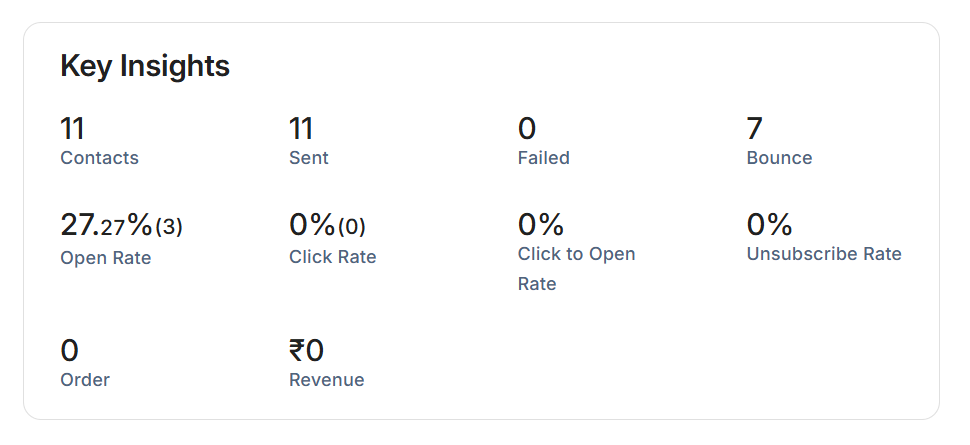
Contacts – This is the starting audience of your campaign which represents How many people you intended to reach also To know more about the maximum possible impact of the campaign.
Sent – Confirms that the email system has successfully sent emails to the selected contacts. Sent shows actual action by the system also helps to recognize whether there were technical sending problems or the campaign was executed correctly.
Failed – Emails that could not be sent at all can be due to either its wrong email address or inbox is full. Failures stop the campaign before it even begins for those recipients.
Bounce – Emails that were sent but rejected by recipient servers can be due to Email list quality or addresses are invalid and inactive. Bounce is one of the most important deliverability signals.
Open Rate – How many users noticed and opened your email. Opening an email means the recipient gave you a few seconds of attention. No open rate means no click on email which gives 0 sales.
Click Rate – How many people interacted with your email content. Whether your message was clear Whether your call-to-action was strong. Design and layout makes the email easy to scan and click. Clicking rate means the user took action towards your mail.
Click-to-Open Rate – How many people who opened the email found it interesting enough to click. This metric removes the subject line factor and focuses only on:
- Email content quality
- Relevance of the offer
- Message clarity
Unsubscribe Rate – People who decided not to receive future emails. Whether content matched expectations Unsubscribes are not always bad, but high numbers show misalignment with audience needs.
Orders – Number of purchases caused by this email. Whether engagement turned into real action also the campaign achieved its goal. Orders show the impact of business.
Revenue- Total money earned from the campaign. It gives financial success and effort needed.
ENGAGEMENT
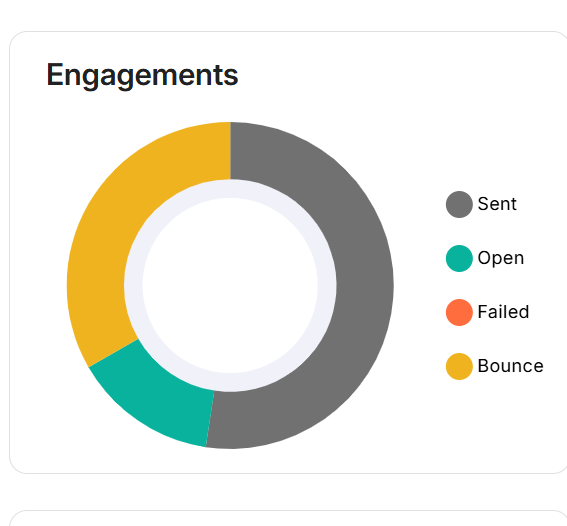
The Engagements chart shows what happened to your emails after you sent them Each color part of the circle represents how recipients reacted to your email.
⚫ Sent – This segment shows emails that were successfully sent Your email campaign was sent correctly These emails had a chance to be seen by recipient.
🟢 Open – This segment shows emails that were opened by recipients. People who actually looked inside your email in which Your subject line caught attention, The sender name was trusted, The email arrived in the inbox. Opens are tracked when images are loaded and some opens may not be counted if images are blocked .
- An open means you successfully got the reader’s attention.
🟠 Failed – This segment shows emails that could not be sent at all. Emails that never went out of your system. Failed emails reduce your campaign reach immediately.
Common reasons-
- Incorrect email format
- Domain is blocked
🟡 Bounce – This segment shows emails that were sent but rejected by the recipient’s email server. The reason behind the email was returned is that the email address is wrong,The inbox is full,Domain is inactive
- High bounce rate can cause your emails to go to spam later.
Top Click Links
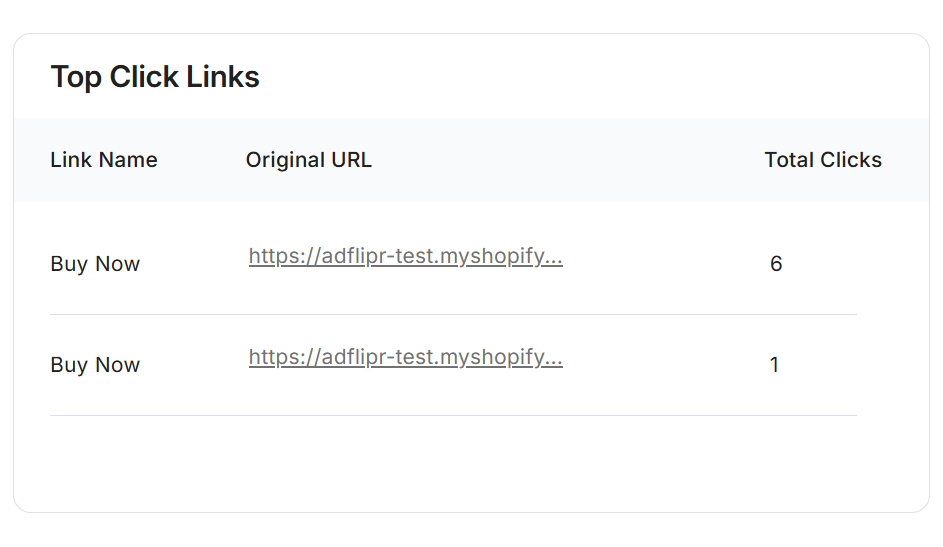
The Top Click Links feature is designed to give you a clear view of user actions after they interact with your campaign.
The section displays with three main columns:
- Link Name : This is the label used by the users to analyse Which button or link was clicked such as “Buy Now”.
- Original URL : This is the actual destination link that tells Where that link goes.
- Total Clicks : Shows how many times users clicked that link.
PERFORMANCE
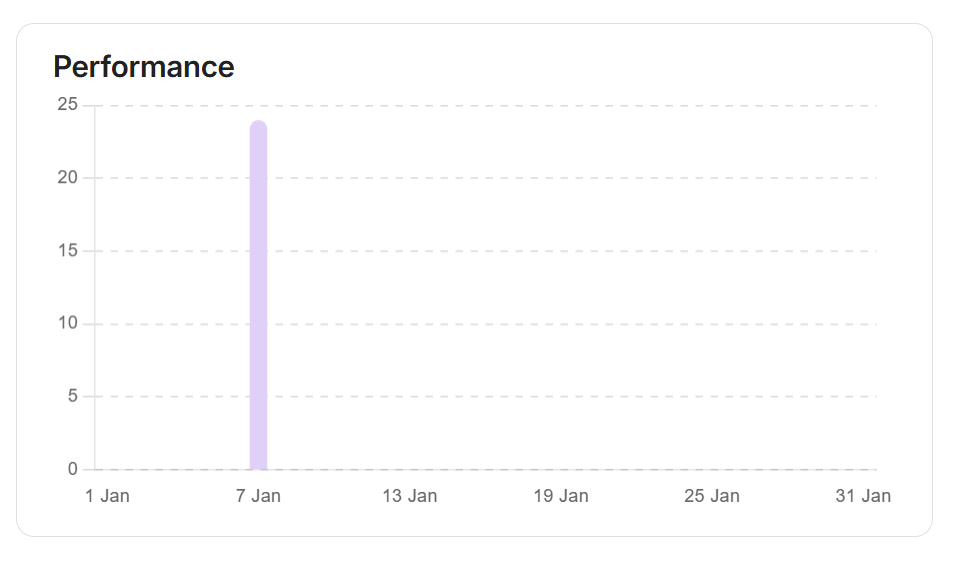
The chart displays performance data on a date-wise timeline.
– Horizontal (X) axis represents days of the month (for example: 1 Jan, 7 Jan, 13 Jan etc as shown in above image.
– Vertical (Y) axis shows the performance data , such as actions, events and results (for example: emails sent, clicks, conversions, or campaign activity).
This feature helps you to see which day your campaign performed best. Helps you detect sudden increases and decreases in activity, so you can analyze what can be done to improve and how it will go well.
Also, easily check whether performance is steady or only happening on specific days.
This Performance chart gives you a clear view summary of your results with time and date, making it easy to monitor progress and improve your marketing efforts using Adflipr.
Traffic distribution
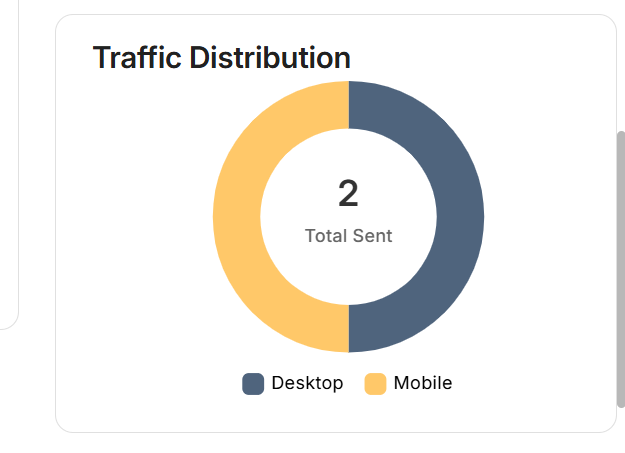
The Traffic Distribution feature in Adflipr helps you clearly understand where your traffic is coming from, specifically whether users are visiting from Desktop or Mobile devices.
The visual chart of traffic distribution represents:
– Total Traffic Sent (shown in the center)
– Device distribution type:
🖥️ Desktop (shown in grey )
📱 Mobile (shown in yellow)
Adflipr focuses on smart tracking and performance that help to Understand User Behavior Different users behave differently on desktop and mobile.Desktop users may spend more time Mobile users may drop off quicker.
Send to Unopen/ failed
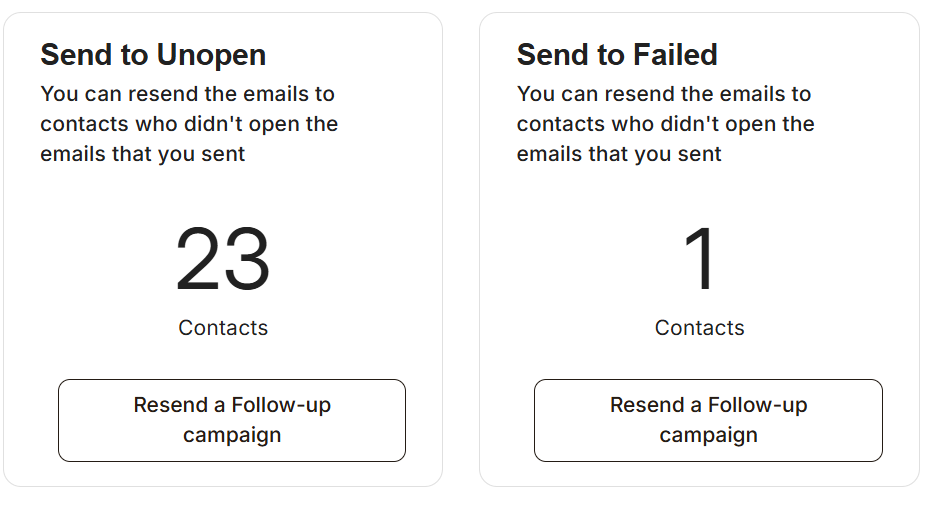
Send to Unopen – This option targets contacts who received your email but did not open it. In this feature data shows contacts may have missed the email due to timing, subject line, or inbox clutter.
Resend a Follow-up campaign – To send the email again where you can change the subject line, content, or sending time to increase open rates.
This feature helps: to improve email open rates, gives your message a second chance without creating a new campaign, and important emails don’t go unnoticed with this feature.
Send to failed – This option targets contacts where the email failed to deliver it can be due to wrong email of customers.
Adflipr attempts delivery again, which can succeed if the issue was temporary. This feature helps to prevent losing contacts due to temporary email failures, Improves overall email reach and delivery success also Helps keep your campaign results accurate and complete.
Campaign activity
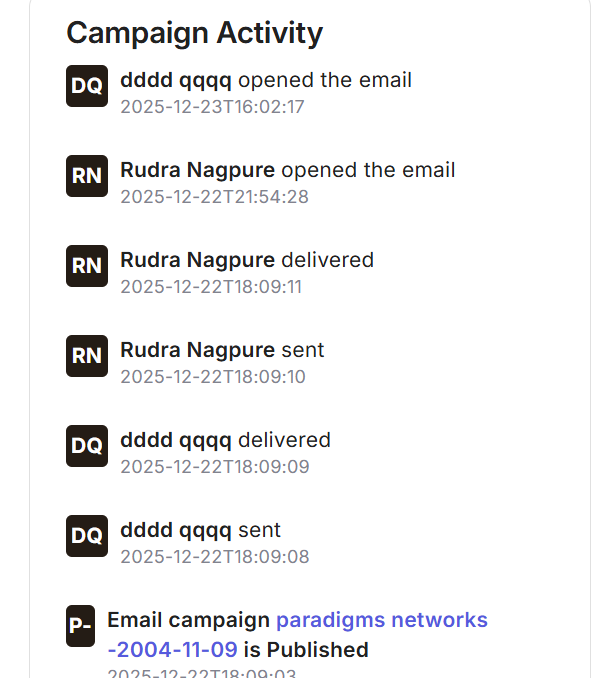
Campaign Activity in Adflipr is a detailed activity feature that shows everything that happens to an email campaign after it is published. It tracks each important event such as sending, delivery, and email opens for every recipient, along with the exact time each action happened.
This feature shows:
- Contact name and identify
- Action performed such as sent, delivered or does mail has opened
- Exact date and time
- Campaign publishing event
This feature is important as it helps to Confirm email delivery, Tracks real engagement, Helps with follow-ups and Improves future campaigns. Campaign Activity plays a core role in the monitoring role in Adflipr. Its main purpose is to help users understand performance, delivery status, and audience engagement.
Content
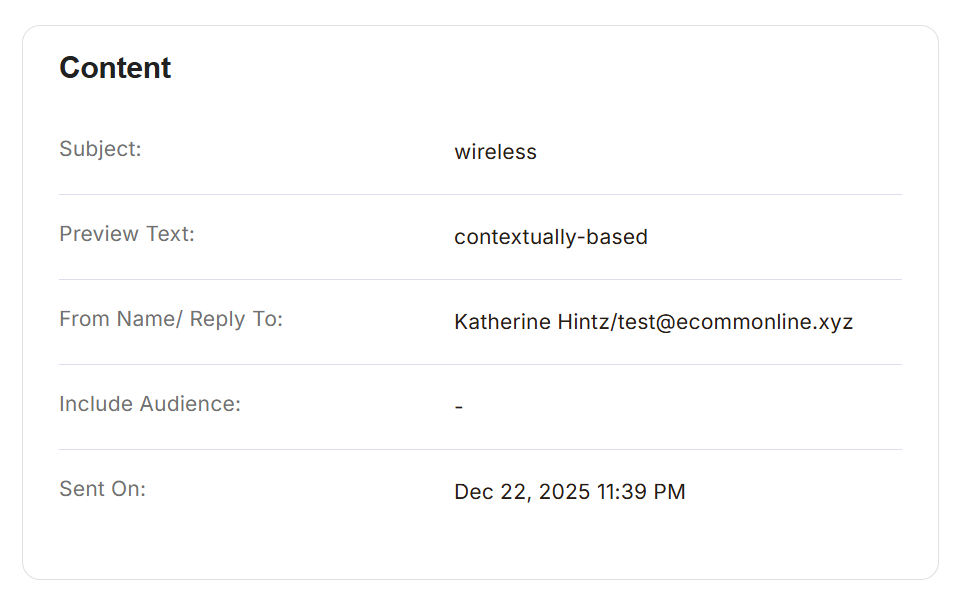
The Content section shows the final email configuration of a campaign. It tells you what the email looked like from a recipient’s point of view and how it was set up before sending.
The content section contains Subject, Preview Text, From Name / Reply To, Include Audience, Sent On. This feature is important as it gives a Single source of truth, Campaign review & audit also helps in error prevention.
The Content feature in Adflipr shows the full email identity of your campaign.
– What the email said (Subject & Preview)
– Who sent it (From Name & Reply-To)
– Who it was sent to (Audience)
– When it was sent (Date & Time)
Content in Adflipr is the final snapshot of your email campaign showing exactly information.
UTM details
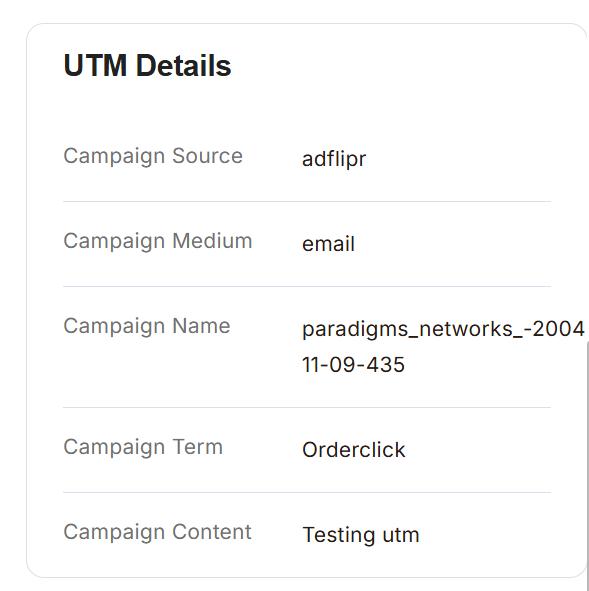
UTM Details show the tracking parameters that are added to links in your email campaign.These parameters help to understand from where your website traffic is coming from and how people behave after clicking your email.
This feature contains: Campaign Source that helps Identifies where the traffic came from also helps separate Adflipr traffic from other tools or platforms.
Campaign Medium – Shows what type of channel was used also whats the medium and Helps group performance by marketing channel.
Campaign Name – Identifies the specific campaign thats Makes reporting clear and organized.
Campaign Term – Used to track specific keywords or actions often used button clicks and CTA types.
Campaign Content – it helps to differentiate between different links or content versions and useful for A/B testing.