The Coupon feature in Adflipr lets you add discount codes directly into your email templates. It’s a drag-and-drop content block that makes creating special offer emails very easy even if you’re not technical. The Coupon option acts like a visual coupon you can drop into your email. It represents a discount code, promo offer, or voucher that your customers can use to get a deal.
The Coupon feature in Adflipr allows you to create and insert a professional-looking discount coupon directly inside your email campaigns. It is designed to make promotions more attractive, clear, and action-driven. Instead of just typing a discount code in plain text, you can visually display it in a styled coupon box that stands out and grabs attention
Steps to Use the Coupon Feature-
Step 1: Open the Email Editor
- Log in to your Adflipr account.
- Go to Templates.
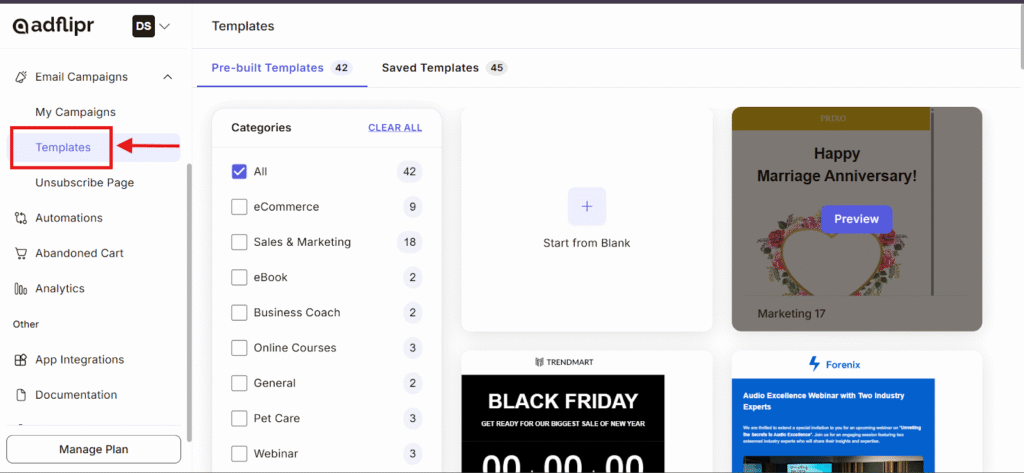
- Click Create New Template or edit an existing template.
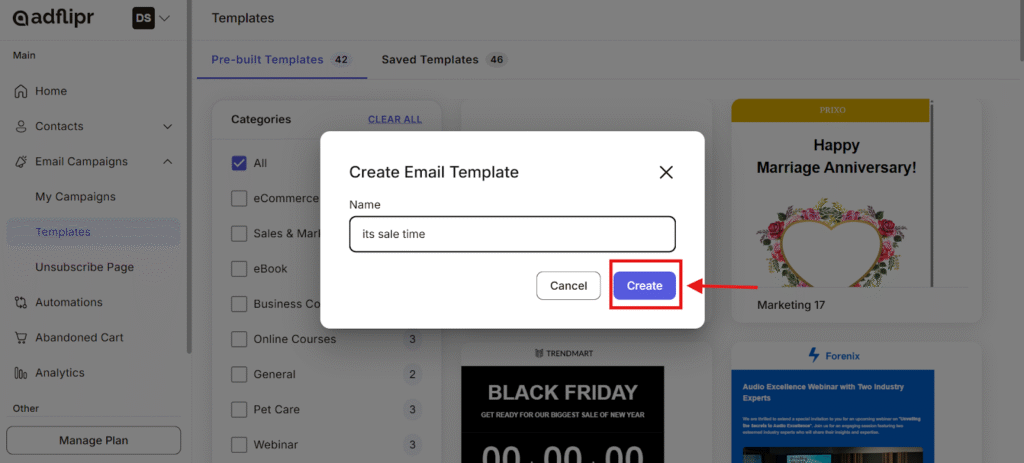
- The Email Editor will open.
Step 2: Add the Coupon
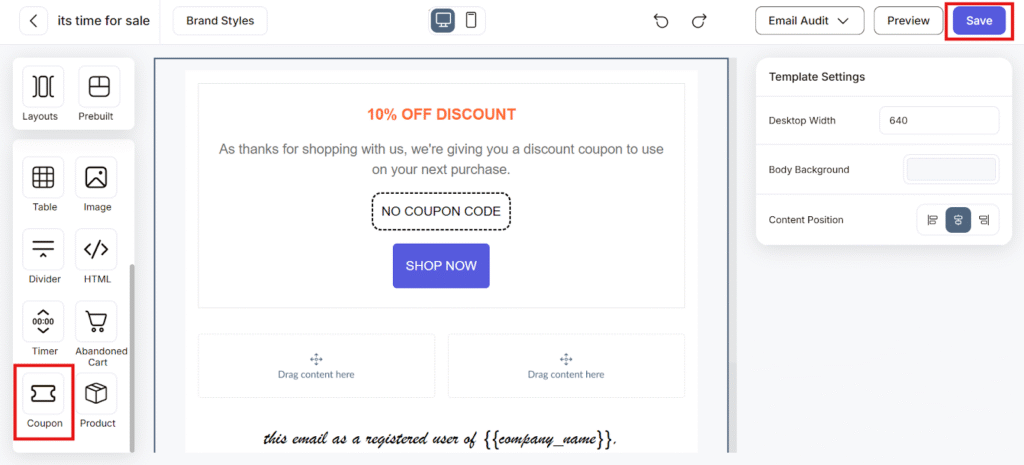
- From the left-side panel, find the Coupon.
- Drag and drop the Coupon block into your template.
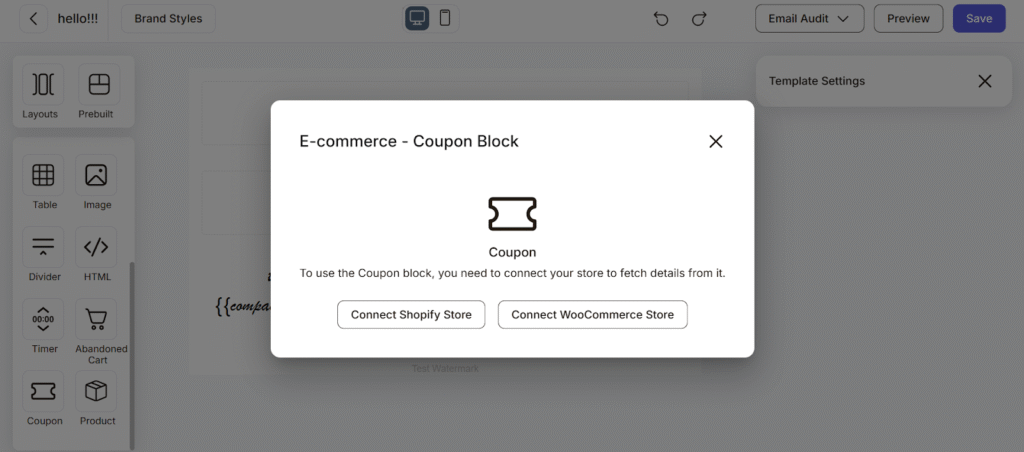
Step 3: Connect Your Store (If Not Connected)
If your store is not connected, a pop-up will appear asking you to connect:
- Connect Shopify Store
- Connect WooCommerce Store
Choose your platform and complete the connection process.
For Shopify:
- Click Connect Shopify Store.
- Click Install and login with your adflipr account.
- Wait for the confirmation message.
- Once connected, you can use the coupon option and can edit as per your requirements.
For WooCommerce
- Click Connect WooCommerce Store.
- Install Adflipr app from wordpress appstore
- Click Connect / Authorize.
- After a successful connection, you can use the coupon option.
Note: Store connection is required only once.
Step 4: Add or Select a Coupon
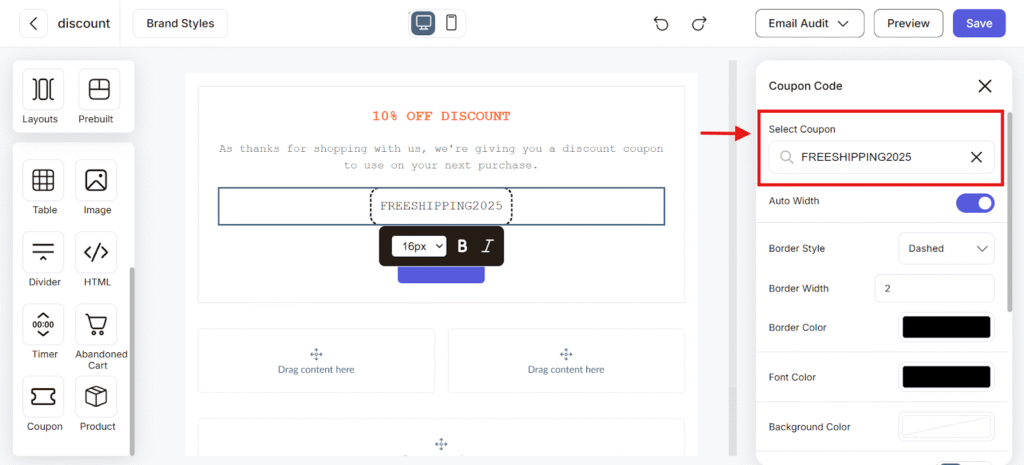
After connecting your store:
- Click on the Coupon block inside the editor.
- Choose one of the following:
- Select an existing coupon from your store (You will get all the coupon that you have created on your store). Or you can create a custom coupon code manually
- Select an existing coupon from your store (You will get all the coupon that you have created on your store). Or you can create a custom coupon code manually
- Customize:
- Coupon code text
- Discount description (e.g., “Get 20% OFF”)
- Expiry date (if applicable)
- Button text (e.g., “Shop Now”)
Step 5: Customize Design
Select Coupon On the right side, you can Select Coupon in the search bar, choose the desired coupon code.
This means:
- The system links that coupon to this email
- No need to manually copy/paste codes
Further you can also edit:
- Change font style and size
- Adjust background color
- Modify button color
- Align the coupon block as needed
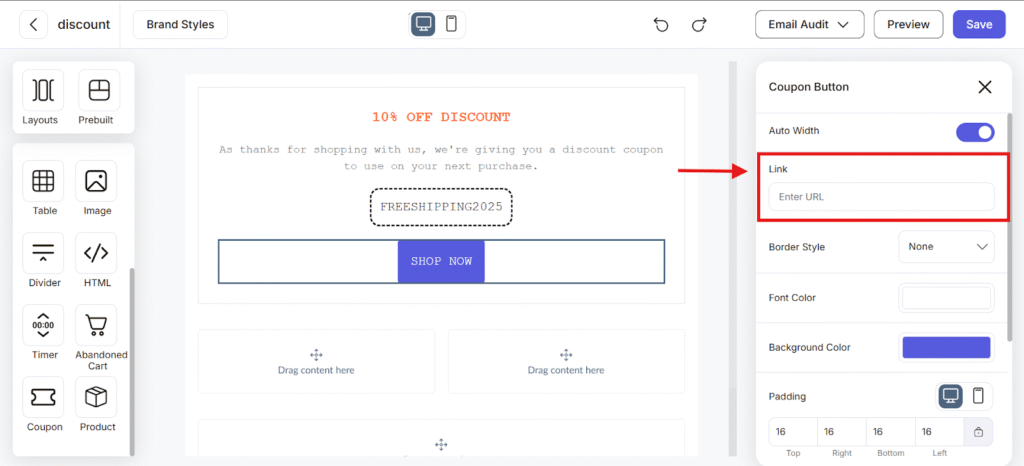
Also you can add URL Link to your shop button this will make your steps more easy to reach.
Step 6: Preview and Save
- Click Preview to check how the coupon appears.
- Click Save to store your template.
This is a powerful feature in many ways such as:
- Creates Urgency- When customers see:
- “Expires Tonight”
- “Only for 48 Hours” or particular time duration they are more likely to act fast.
- Increases Click-Through Rate- Emails with visible discounts usually get more clicks than emails without clear offers.
- Boosts Conversions- A clear coupon reduces buying hesitation.
- Makes Emails Look Professional- Instead of messy text like You show it in a clean, designed block For example : “Use code SAVE20 to get 20% off”.
Best Ways to Use Coupons in Campaigns-
The Coupon works very well for example-
- Flash Sales- “Flash Sale – 40% OFF Today Only”
- Holiday Promotions- Black Friday, Christmas, New Year offers
- Abandoned Cart Emails- Send a small discount to recover lost sales
- VIP Customer Rewards- Special coupon for loyal customers
- Birthday Offers- Personalized birthday discounts
- New Product Launch- Launch discount for early buyers
Smart Strategies for good Results-
- Add Expiry Countdown (with Timer) – Combine coupon + timer for urgency.
- Use Clear Discount Numbers- “50% OFF” works better than “Big Discount”.
- Place Coupon Above the Fold- Put it near the top of the email so users see it instantly.
- Make the Code Easy to Read- Short and simple codes work better GOOD: SAVE20, BAD: SPRINGMEGASALE2026
Advantages–
- No coding required
- Works in responsive email layouts
- Mobile-friendly
- Can be reused in multiple templates
- Easy editing before sending