
Events are actions or changes that happen to a subscriber in your system. These events are used as triggers to start an automation. When any event takes place, Adflipr can automatically react.
Main features that are in contact events:
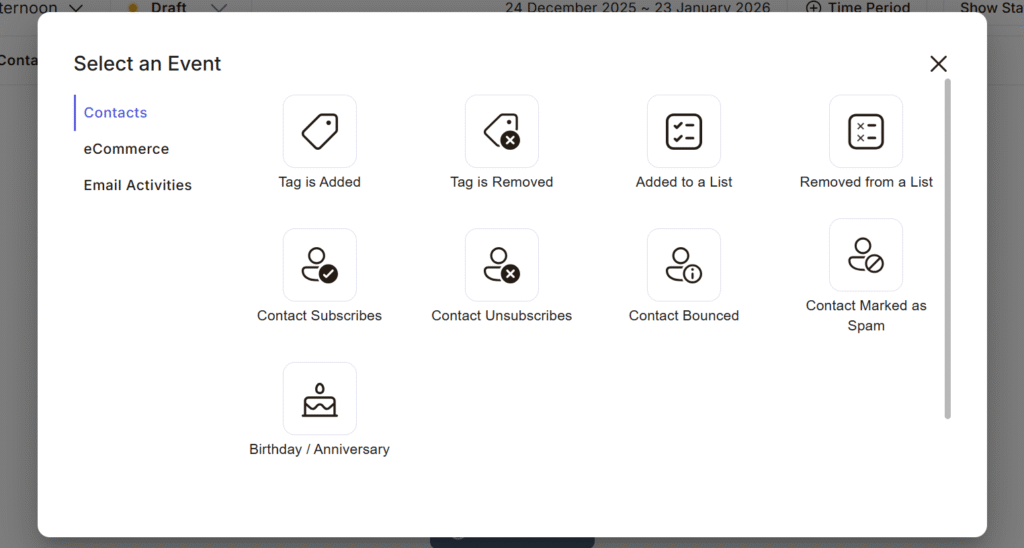
1.Tag Is Added
This event is triggered when a specific tag is added to a contact. Tags are labels used to identify a contact’s interest, behavior, or status. You can start a follow-up email series, Send targeted offers, Move contacts into a sales funnel.
Tags help you segment your audience. This event allows highly personalized automation based on interest or behavior.
2. Tag is removed
This event triggers when a tag is removed from a contact. You can send an upgrade or re-engagement email, stop a specific campaign, move the contact to another workflow.
It helps you respond when a contact changes status, such as finishing a trial or leaving a segment.
3. Added To a list
This event starts when a contact is added to a mailing list. Lists are usually used to group contacts for campaigns or newsletters.
You can send a welcome email, start an onboarding sequence and also share important information. It ensures every new list member gets the right message at the right time
4. Removed from a list
Triggered when a contact is removed from a specific list. You can stop promotional emails, Move the contact to a different list and update tags automatically.
It is to keep your messaging clean and relevant, avoiding unwanted emails.
5. Contact Subscribes
This event triggers when a contact subscribes to your emails.This usually happens when someone signs up through a form or contact opts in again. You can send a welcome email, deliver a lead magnet and also Introduce your brand.
It is useful as it gives perfect first impressions and starts a relationship with new subscribers.
6. Contact Unsubscribes
Triggered when a contact doesn’t want to receive emails.You can Stop all ongoing automations that will mark contact as “Unsubscribed” and help to Notify your team.
It helps you to stay with email rules and regulations and also respect user preferences.
7. Contact Bounced
It generally occurs when an email fails to deliver to a contact’s inbox. You can Pause emails to that contact mark Tag as “Invalid Email” and Clean your contact list.
It’s useful to protect your sender reputation and improve email deliverability.
Common reasons are:
- Invalid email address
- Full inbox
- Server issues
8. Contact Marked as Spam
Triggered when a contact marks your email as spam. You can immediately stop emails, mark tags as “Spam Complaint” and alert your admin team.
It is very important for maintaining email trust and compliance.
Best ways to Reduce Spam Complaints:
- Clearly explain what users will receive
- Avoid aggressive subject lines
- Always include an unsubscribe link
- Send emails only to engaged contacts
9. Birthday / Anniversary
This event triggers on a specific date stored in the contact profile like birthday or anniversary. you can send birthday wishes, Offer special discounts send personalized greetings.
It helps build strong personal connections and increases engagement.
This event work as :
- Date is stored in the contact profile
- Adflipr checks daily for matching dates
- On the exact date (or before/after, if configured), the automation starts
Events of Ecommerce
The ecommerce feature in Adflipr allows you to connect customer shopping behavior with automation.
Adflipr watches what shoppers do in your online store and automatically responds at the right time. This helps you to Recover lost sales, Increase revenue and Improve customer experience.
1. Abandons Cart
Cart abandonment happens when a customer adds products to their cart, reaches checkout or leaves the site without completing the purchase. This is very common in online shopping.
Some common reasons why customers abandons the cart
- Shipping cost is too high
- Checkout process is long
- They got distracted
- They wanted to think before buying
Adflipr automatically detects the abandoned cart that stores cart details (products, price, customer) and triggers your automation workflow.
Through this event you can automatically send reminder emails, show cart items in the email and also provide discounts and offers.
2. Cart Recovered
This event happens when a customer returns and completes the purchase after abandoning the cart, basically a lost sale is successfully saved.
It helps you to stop sending reminder emails, track recovered revenue and continue customer journey properly. After the cart is recovered send a thank-you email confirming the order, recommending related products and adding customer loyalty tags.
How Cart Recovered Works
- A customer abandons their cart
- AdFlipr starts tracking that abandoned cart
- The customer clicks a reminder email or revisits the store
- The customer completes checkout
- AdFlipr detects the completed order
- The Cart Recovered event is triggered immediately
Best Practices for Using Cart Recovered
🔹 Always Stop the Abandoned Cart Emails
🔹 Don’t Push More Sales Immediately
🔹 Use Friendly, Appreciative Tone
🔹 Track Recovery Performance
Event of Email activities
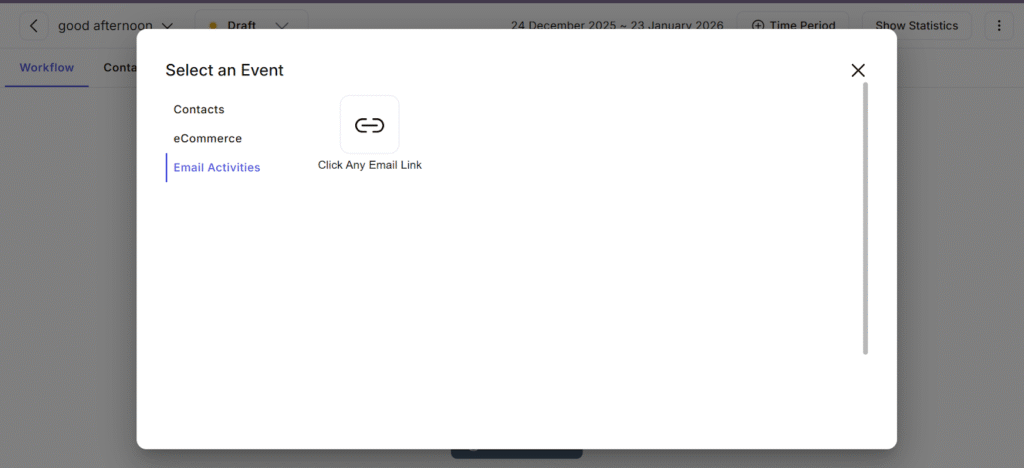
Email Activities track how contacts interact with your emails after they are delivered.
Instead of just sending emails, Adflipr also watches:
- What contacts click
- How they engage
- What actions they take inside the email
These activities can then trigger automations automatically.
– Click Any Email Link” Mean opens an email and Clicks any link inside that email as long as a link is clicked, the automation starts. Clicks means the contact is actively engaged.
“Click Any Email Link” Is Important as it helps to Recognise highly Interested contacts clicking a link shows strong intention
Compared to:
- Email sent ❌
- Email opened ⚠️
- Email clicked ✅ ✅
