

Imagine this: A subscriber opens your email, likes your offer, and thinks, “I’ll come back later.” But later never comes.
That’s one of the biggest reasons email campaigns fail — no urgency.
Email countdown timers fix this problem beautifully. They don’t pressure users. They don’t feel salesy. They simply show one clear message: this opportunity won’t last forever.
In this guide, you’ll learn why email countdown timers work, when to use them, and exactly how to add and configure a countdown timer using Adflipr Drag And Drop Email Builder Tool to boost clicks and conversions.
What Is an Email Countdown Timer?
An email countdown timer is a dynamic element inside your email that shows real-time remaining time until an event ends.
That event could be:
- A sale ending
- A discount expiring
- A webinar starting
- A product launching
Unlike static images, countdown timers update automatically when the email is opened — making the urgency feel real and personal.
Why Countdown Timers Increase Conversions
Countdown timers work because they align perfectly with human behavior.
Here’s what they trigger instantly:
- Urgency – Time is limited, so hesitation drops
- Scarcity – What might disappear feels more valuable
- Focus – The reader knows exactly what matters right now
Instead of thinking “Should I?”, people think “If I don’t act now, I’ll miss it.”. That shift alone can dramatically increase conversions.
When Should You Use Countdown Timers in Emails?
Countdown timers work best when there’s a real deadline.
Use them for:
🔥 Limited-Time Sales
Flash sales, holiday offers, or weekend discounts feel far more compelling with a ticking clock.
🛒 Cart Abandonment Emails
A countdown reminds users that their cart or discount won’t wait forever.
🎓 Webinars & Live Events
Timers reduce no-shows by reminding subscribers exactly when the event starts.
🚀 Product Launches
Countdowns build anticipation before launch and urgency after release.
If there’s no actual deadline, skip the timer. Fake urgency hurts trust.
Why are countdown timers effective for email conversions?
Countdown timers are effective because they create a clear deadline. This triggers urgency and fear of missing out (FOMO), which reduces procrastination and speeds up decision-making. As a result, more subscribers take action before the offer expires.
How to Add a Countdown Timer Using Adflipr (Step-by-Step)
With Adflipr, adding a countdown timer is visual, flexible, and requires no coding. Here are the key steps and settings you need to configure.
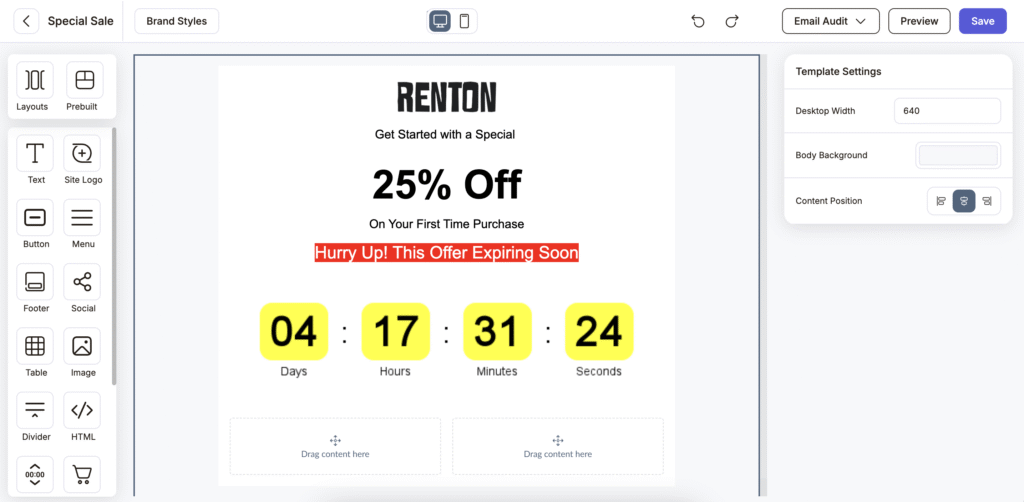
Step 1: Drag the Countdown Block
Inside the AdFlipr email editor:
- Open your email campaign
- Drag the Countdown block into your layout
- Place it near the top or close to your CTA for maximum impact
Once added, the countdown configuration panel becomes available.
Step 2: Choose the Countdown Style
You can choose how the countdown appears:
- Text style – minimal and clean
- Card style – boxed and more visually prominent
✅ Text styles work well for informational emails.
✅ Card styles are ideal for sales and promotions where urgency is the focus.
Step 3: Set the Countdown Expiry Time & Time Zone
This is a critical step.
You’ll configure:
- The end date and time
- The time zone
Adflipr allows you to select a specific time zone so the countdown behaves accurately based on that zone. Once configured, the countdown dynamically appears according to the selected time zone.
This prevents early expiration and avoids confusing your audience.
Step 4: Select the Countdown Format
Next, decide how much time detail you want to display.
You can show:
- Days, hours, minutes, seconds
- Only hours, minutes, and seconds
- Short formats like
D H M S - Or a custom format
For long campaigns, days and hours work best.
For flash sales, hours, minutes, and seconds create stronger urgency.
Step 5: Configure the Separator
AdFlipr gives you full control over separators.
You can:
- Show or hide separators
- Customize their appearance
This helps keep your countdown clean and readable, especially on mobile devices.
Step 6: Customize Design & Styling
You can fully match the countdown with your brand by adjusting:
- Background color
- Digit color
- Label color
- Separator color
- Font family
- Digit font size
- Label font size
- Separator font size
- Padding and spacing
This ensures your countdown looks intentional — not like a generic widget.
Step 7: Preview and Finalize
Before sending:
- Preview on desktop and mobile
- Double-check the time zone
- Ensure the countdown matches your copy
If your email says “Ends tonight”, the timer should clearly reflect that.
Common Countdown Timer Mistakes to Avoid
Even great tools can fail if used incorrectly.
Avoid these mistakes:
- Using countdown timers in every email
- Mismatched copy and timer duration
- Incorrect time zone setup
- Over-designing the countdown
Simple, clear countdowns convert best.
How Countdown Timers Drive More Conversions
When used correctly, countdown timers help you:
- Reduce hesitation
- Increase click-through rates
- Improve last-minute conversions
- Turn interest into action
They work especially well when paired with:
- Clear CTAs
- Short, benefit-driven copy
- Clean email layouts
Why Adflipr Makes Countdown Emails Easier
Countdown timers are powerful, but they’re even more effective when paired with smart automation.
With Adflipr, you can:
- Add and customize countdown timers easily
- Control time zones and formats
- Use countdowns inside automated workflows
- Send urgency-based emails at exactly the right moment
Instead of manually pushing users, your emails do the work for you.
Frequently Asked Questions About Email Countdown Timers
Do countdown timers work in emails?
Yes, countdown timers work very effectively in emails. They increase urgency, reduce hesitation, and push subscribers to take action faster. When people see time running out, they’re more likely to click, sign up, or make a purchase instead of delaying.
How do I add a countdown timer to an email?
You can add a countdown timer using an email tool that supports dynamic content. With Adflipr, you simply use the drag and drop email builder tool, add a countdown block, set the end time and time zone, choose the format, and customize the design — no coding required.
Can I add a countdown timer without coding?
Yes. Modern email platforms like AdFlipr allow you to add countdown timers without any technical knowledge. Everything is handled visually inside the drag and drop email builder tool, making it easy for marketers and business owners to set up in minutes.
Should I use countdown timers in every email?
No. Countdown timers should only be used when there is a real deadline. Using them too often can reduce their impact and make emails feel repetitive or misleading. They work best for sales, limited-time offers, and event reminders.
Can countdown timers be used in automated email workflows?
Yes. Countdown timers are especially powerful in automated workflows such as cart abandonment emails, last-chance reminders, and event follow-ups. They help deliver urgency at the exact moment when users are most likely to convert.
