Many store owners ask the same question: why do my emails land in Promotions instead of Primary? This guide explains how to avoid the Gmail Promotions tab for the emails that matter, and when to leave it alone. The answer is partly about your emails and partly about Gmail’s own sorting, so the goal is better odds, not a guarantee.
Quick answer: You can’t force Gmail to use the Primary tab, but you can improve your odds. Authenticate your domain, email only engaged subscribers, keep designs light, and ask new subscribers to move your emails to Primary.
What the Promotions tab is (and what it is not)
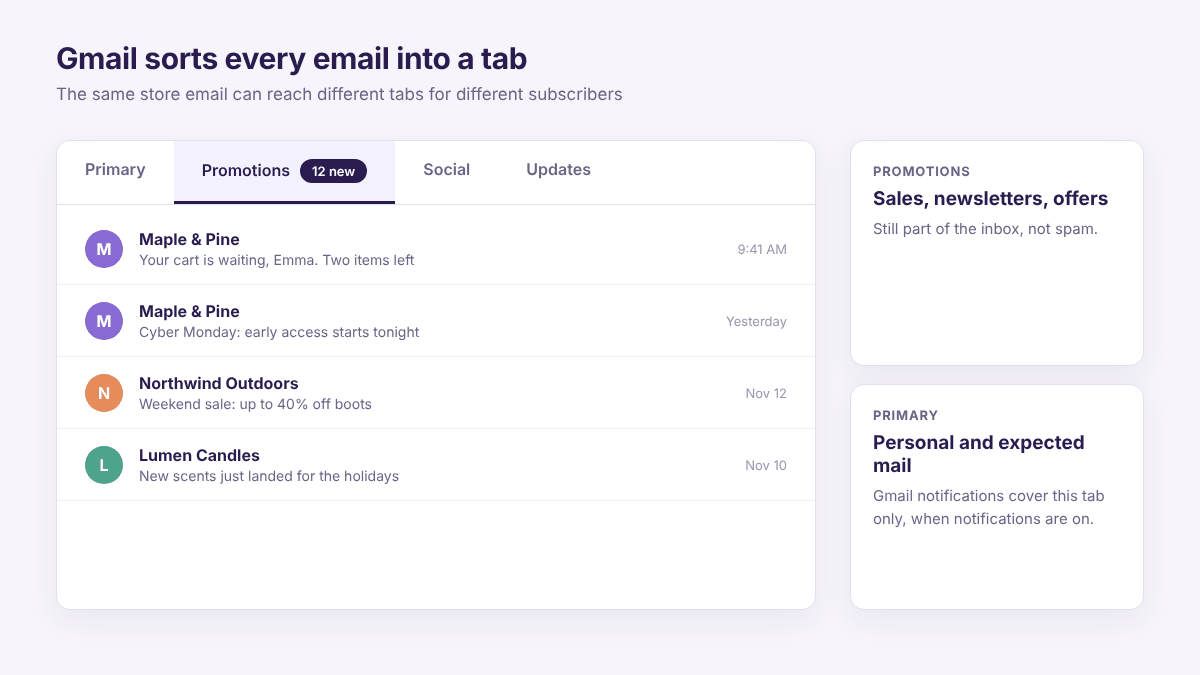
Gmail sorts incoming mail into tabs such as Primary, Promotions, Social and Updates. Marketing and bulk emails usually go to Promotions, and the tab is part of the inbox, not the spam folder. If you want to fix spam placement instead, read our guide on why emails go to spam.
Primary still matters, however. According to Google’s Gmail Help, Gmail only sends notifications for the Primary category when notifications are on. As a result, a sale email in Promotions rarely gets a phone alert.
Gmail also sorts mail for each person separately, so the same email can land in different tabs for different subscribers. Some people turn tabs off completely, and those subscribers see everything in one inbox.
Why your store emails land in Promotions
Gmail does not publish its exact rules. Still, these signals are commonly linked to Promotions placement:
- Bulk sending to a large list through a marketing platform
- Sale language, discount codes and urgency in the subject line
- Heavy design with many images, buttons and links
- A generic sender name such as “Store Team”
- Low engagement, because many subscribers ignore or delete your emails
Store emails are promotional by nature, so some of them belong in Promotions. The real task is to decide which ones should not be there.
Which store emails should stay in Promotions?
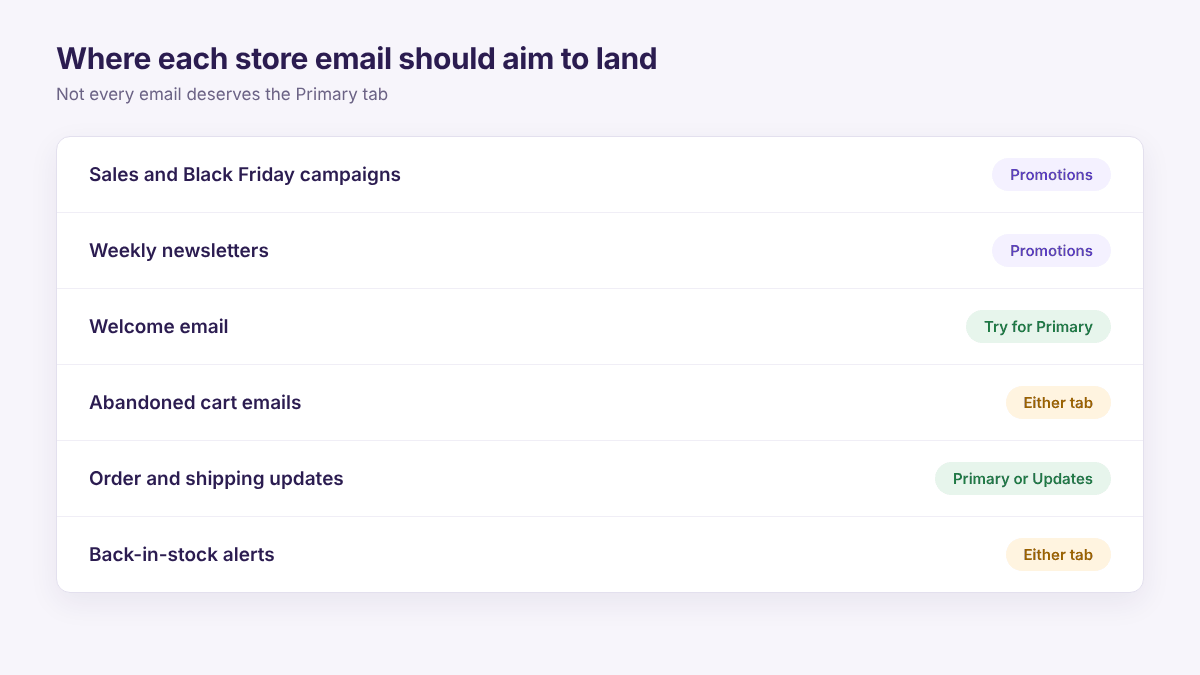
Not every email deserves the Primary tab. This table shows a realistic goal for each common store email.
| Email type | Realistic goal | Why |
|---|---|---|
| Sales and Black Friday campaigns | Promotions | Shoppers open this tab when they want deals |
| Weekly newsletters | Promotions | They are bulk, design-led and repeated |
| Welcome email | Try for Primary | Subscribers expect it right after signing up |
| Abandoned cart emails | Either tab | A timely, one-to-one tone helps |
| Order and shipping updates | Usually Primary or Updates | Customers need them |
| Back-in-stock alerts | Either tab | The shopper asked for them |
Order and shipping messages follow different rules from marketing messages, so keep them separate. Our guides on order confirmation emails and transactional emails explain the basics.
Do not try to trick Gmail into treating a sale email like a personal note. Instead, put your effort into the emails marked Primary above, such as the welcome email and your abandoned cart emails.
How to avoid the Gmail Promotions tab in 7 steps
Step 1: Authenticate your sending domain
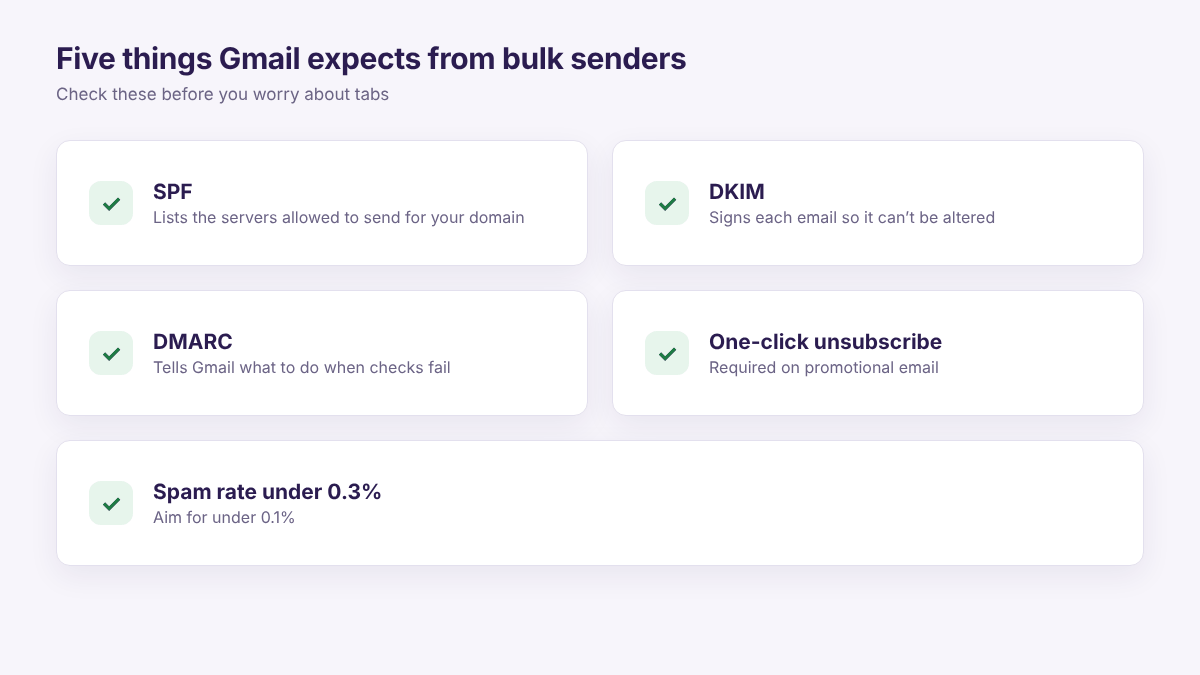
Gmail expects every sender to authenticate their email. Bulk senders must use SPF, DKIM and DMARC, according to Google’s email sender guidelines. The same guidelines require easy unsubscribe on promotional mail and a spam rate below 0.3%. Yahoo’s sender requirements are very similar.
First, add your own sending domain in Adflipr and publish the DNS records it shows you. Then wait until the domain shows as verified. For the technical details, see our email deliverability guide.
Step 2: Use a real sender name and your own domain
Send from a name people know, such as “Emma from Maple & Pine”, instead of “Marketing Team”. Also use an address on your own domain, not a free Gmail address.
Keep the same From name every time, because a stable sender builds reputation. Then make sure replies reach a real inbox, since replies show Gmail that real people talk to you.
Step 3: Email engaged subscribers first
Gmail watches how people react to your emails. If many subscribers ignore you, the whole sender looks less important. For this reason, send each campaign to recent clickers and buyers first.
Apple Mail hides real opens, so clicks and purchases are a better signal than opens. Then include older contacts only in occasional win-back sends. Save this group as a segment, and reuse it for every campaign.
Step 4: Keep the design light
Heavy design makes an email look like a flyer. So use one hero image, short text and one main button. Keep links to a minimum, and avoid emails that are only a large image.
However, do not strip out your branding. A clean, branded email still builds trust. Our guide on text to content ratio shows how to balance the two.
Step 5: Write subject lines like a person
A subject line that reads like a note can feel less like an ad. For example, “Your cart is waiting, Emma” feels more personal than “MEGA SALE!!! 50% OFF NOW”. Also skip all caps and stacked exclamation marks. For more ideas, see our subject line examples.
Step 6: Ask new subscribers to move your email to Primary
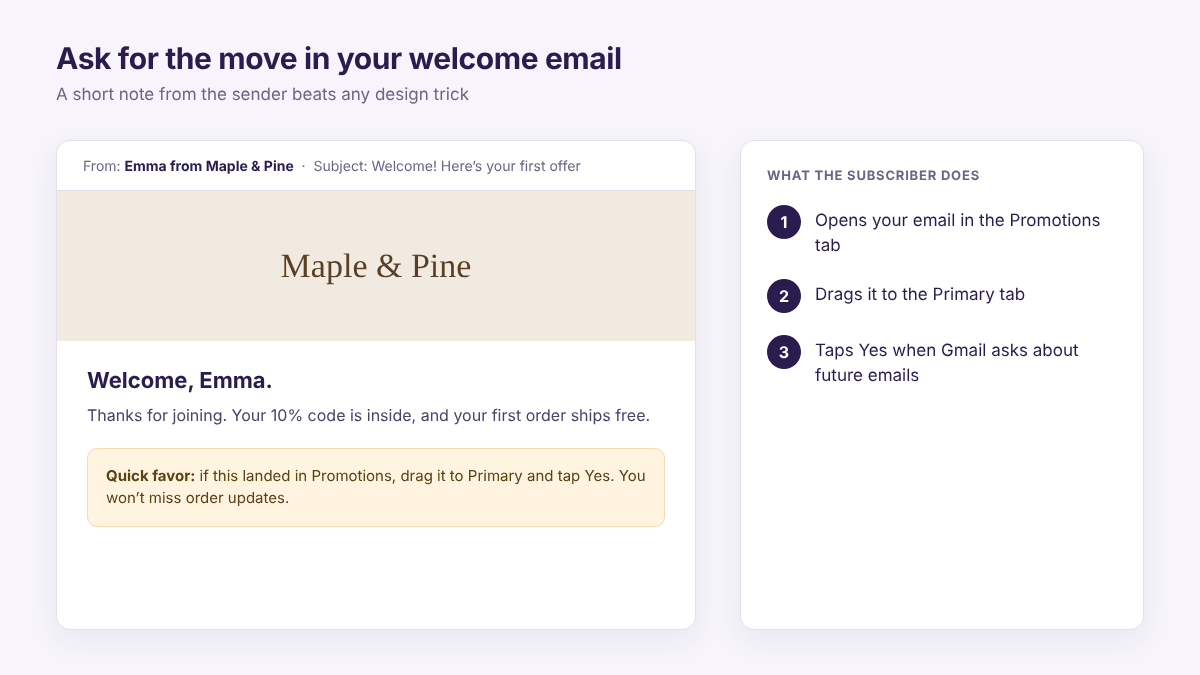
A direct request works because it comes from the subscriber. When someone drags your email from Promotions to Primary, Gmail asks whether future emails from you should go there too.
Add a short note to your welcome email and your sign-up confirmation page. Here is a simple version:
If this email landed in Promotions, drag it to your Primary tab. Then click Yes when Gmail asks about future emails. You won’t miss your order updates or your first offer.
On the Gmail app, subscribers can open the email, tap the three dots and choose Move to, then Primary. Also ask them to add your address to their contacts.
Step 7: Use double opt-in if list quality is a problem
Double opt-in confirms that each address is real and wanted. As a result, fewer fake or mistyped addresses drag down your engagement. However, it adds one step for subscribers, so weigh the trade-off. Read single opt-in vs double opt-in before you decide.
How to check where your emails land
First, send a test to a few real Gmail accounts, including a personal one and a Google Workspace one. Then check which tab each email reaches.
Next, open the message, click the three dots and choose Show original. Confirm that SPF, DKIM and DMARC all say PASS.
Finally, set up Google Postmaster Tools to watch your spam rate. Keep it under 0.3%, and aim for under 0.1%. Repeat the test after every major change, because one test proves little.
What not to do
- Don’t hide the unsubscribe link. Google requires easy unsubscribe on promotional mail, and complaints raise your spam rate.
- Don’t buy email lists. Cold addresses ignore you, so your engagement drops fast.
- Don’t remove every link and image from sale emails. Instead, split your emails by purpose, as shown in the table above.
- Don’t change your From name or domain often. Gmail needs time to learn a stable sender.
Before Black Friday and Cyber Monday: a 5-point check
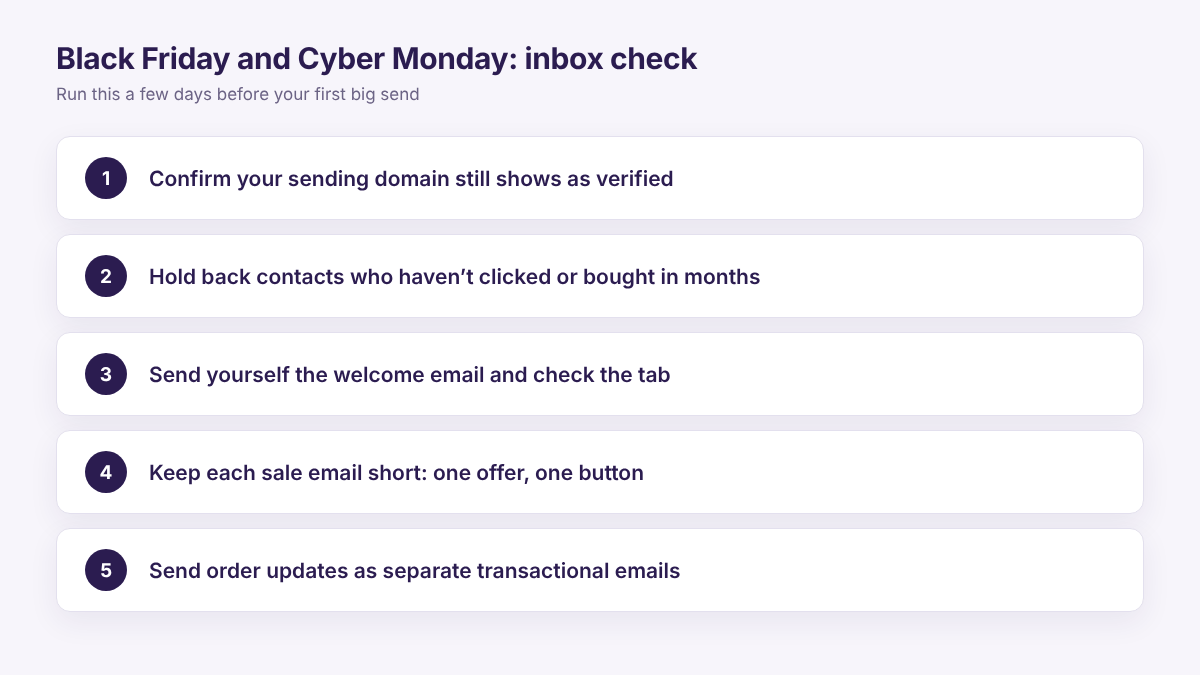
Inboxes fill up with promotions during the holiday weeks, so your emails compete harder. Run this check a few days before your first big send:
- Confirm that your sending domain still shows as verified.
- Hold back contacts who have not clicked or bought in months.
- Send yourself the welcome email and check which tab it reaches.
- Keep each sale email short, with one clear offer and one button.
- Send order updates as separate transactional emails.
For the full holiday plan, see our Black Friday email marketing guide.
How Adflipr Can Help
Adflipr is an email marketing platform for Shopify and WooCommerce stores. Here is what it covers for this guide:
- Sending domain: add your own domain and check its DNS verification status
- Email builder: light, branded emails with one clear button
- Contact management: segments of your most engaged shoppers
- Automations: a welcome flow with your “move to Primary” note
- Analytics and reporting: see which emails people actually click
Start with the welcome email and one engaged segment. When you are ready, build your welcome flow.
Key Takeaways
- Gmail decides the tab for each subscriber, so no trick guarantees Primary.
- Promotions is part of the inbox, and sale emails often belong there.
- Aim for Primary with welcome emails, and keep order updates separate.
- Authenticate your domain and keep your spam rate low.
- Send to engaged subscribers, keep designs light, and ask new subscribers to move your emails.
Frequently Asked Questions
No. Gmail decides for each person, so no setting guarantees Primary. You can improve your odds with authentication, engaged lists and lighter emails.
Not always. Promotions is part of the inbox, and shoppers often open it when they want deals. Aim for Primary only for emails like welcome messages and order updates.
They do not decide the tab on their own. However, they prove your emails are really yours, and bulk senders need them for Gmail delivery.
It can help for that subscriber. Gmail asks whether future emails from you should go to Primary, so a short note in your welcome email is worth adding.
They usually reach Primary or Updates, because customers expect them. Keep them separate from marketing emails, and avoid sale content inside them.
Send tests to real Gmail accounts and look at the tab. Then use Show original to confirm SPF, DKIM and DMARC pass, and watch your spam rate in Google Postmaster Tools.